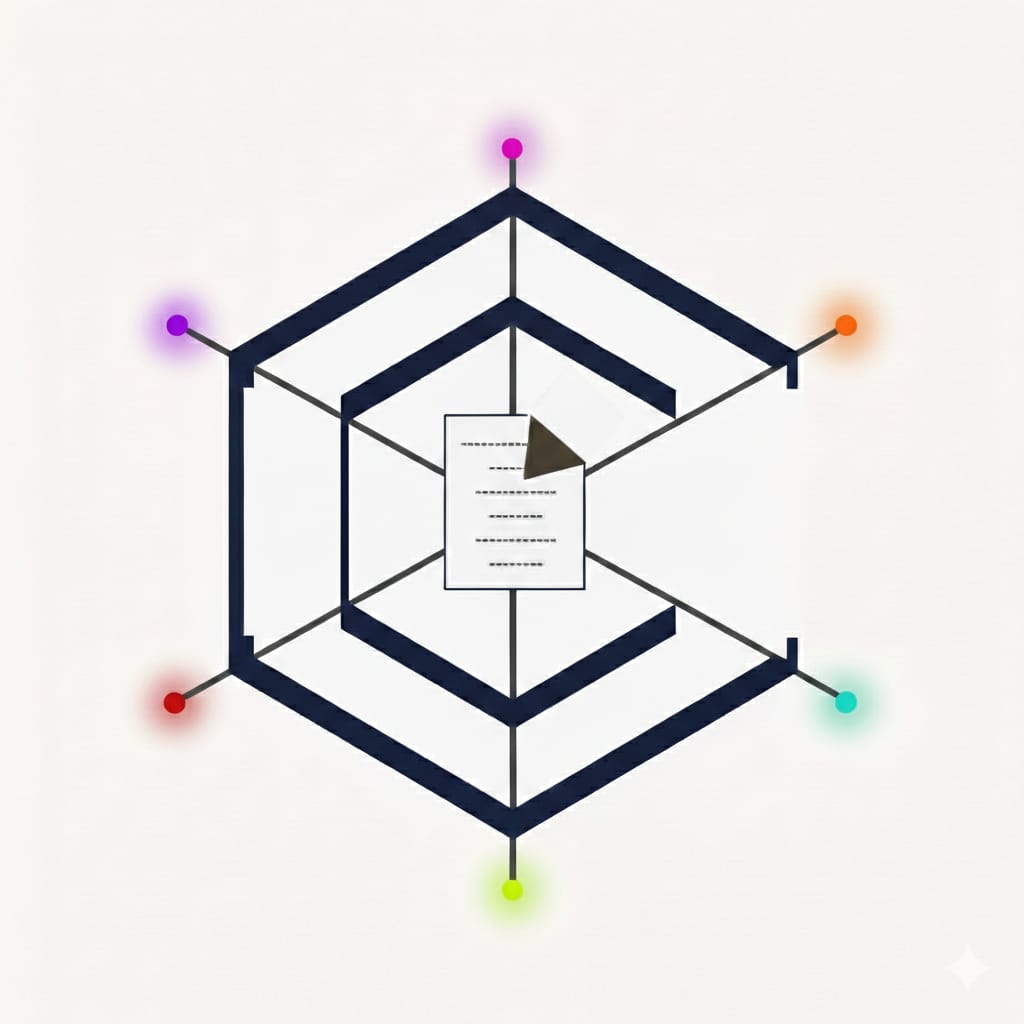
How it works
CaseConduit acts as a standard SAML 2.0 service provider. You register us as an application in your identity platform using the two values above; we register your identity provider on our side. From then on, your people go to caseconduit.io, choose "Sign in with your organisation", enter their work email, and are sent to your familiar company sign-in page. Accounts are created automatically on first sign-in — there is no user list to upload or synchronise, and no passwords are ever stored with us.
Microsoft Entra ID (Azure AD)
- In the Entra admin centre, go to Enterprise applications → New application → Create your own application, choose "Integrate any other application you don't find in the gallery", and name it CaseConduit.
- Under Single sign-on → SAML, set Identifier (Entity ID) and Reply URL (Assertion Consumer Service URL) to the two values at the top of this page.
- The default claims (email address, given name, surname) are exactly what we need — no changes required.
- Assign the users or groups who should have access.
- Copy the App Federation Metadata Url from the SAML Certificates panel and email it to us with your email domain(s).
Okta
- In the Okta admin console, go to Applications → Create App Integration → SAML 2.0 and name it CaseConduit.
- Set Single sign-on URL to our ACS URL and Audience URI (SP Entity ID) to our entity ID (both at the top of this page).
- Add three attribute statements:
email→ user.email,given_name→ user.firstName,family_name→ user.lastName. (Other names work too — just tell us what you used.) - Assign the app to the relevant people or groups.
- From the app's Sign On tab, copy the Identity Provider metadata URL and email it to us with your email domain(s).
Google Workspace
- In the Google Admin console, go to Apps → Web and mobile apps → Add app → Add custom SAML app and name it CaseConduit.
- On the Google Identity Provider details step, click Download metadata — this is the file you'll send us.
- Set ACS URL and Entity ID to the two values at the top of this page.
- Under attribute mapping, map Primary email →
email, First name →given_name, Last name →family_name. - Turn the app ON for the relevant organisational units, then email us the metadata file with your email domain(s).
What happens next
Email your metadata URL (or file) and email domain(s) to hello@caseconduit.io. We connect it the same working day and confirm when it's live, usually with a quick joint test. Certificate rotations on your side need nothing from you when you give us a metadata URL — we pick up new certificates automatically.